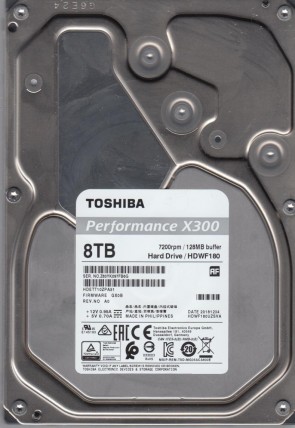
Toshiba HDWF180 3.5″ external hard drive with a storage capacity of 8 TB and featuring a USB 3.0 interface. Toshiba HDWF180 Canvio Advance 8 TB 3.5″ External Hard Drive USB 3.0.

All information about the Toshiba HDWF180 external hard disk drive: technical parameters, failure symptoms, frequently asked questions, reviews, HDD repair and data recovery.

Toshiba HDWF180

Toshiba HDWF180 Technical Details:

Manufacturer:
Toshiba
Hard Disk Model:
HDWF180
Disk Family:
Canvio Advance (External Desktop Series)
Form Factor:
3.5″ (external enclosure)
Capacity:
8 TB (8,000,000,000,000 bytes)
Formatted Capacity:
Approximately 7.27 TB
Rotational Speed:
5400 RPM (typical for high-capacity external drives)
Disk Interface:
USB 3.0 (external) / SATA 6 Gb/s (internal)
Buffer Size:
256 MB
External Transfer Rate:
Up to 5 Gb/s (USB 3.0)
Power Supply:
External AC adapter (12V)

Note: The Toshiba HDWF180 is part of the Canvio Advance series, Toshiba’s line of external desktop hard drives. This 8 TB capacity makes it suitable for large media libraries, full system backups, and creative professional storage. The drive features password protection and backup software pre-installed.


Toshiba HDWF180 Hard Drives:

  • HDWF180 – 8 TB USB 3.0 External Desktop Hard Drive, Canvio Advance series
  • Model code breakdown: HDWF (Toshiba external drive series) + 180 (8 TB capacity)
  • Interface: USB 3.0 (backward compatible with USB 2.0)
  • Compatible with: Windows, macOS (may require reformatting for Time Machine)
  • Recommended usage: Desktop backup, media storage, creative workflows

Toshiba HDWF180 Failure Symptoms:

Electrical Failure Symptoms:

  • Drive does not power on (no LED, no spin);
  • USB device not recognised by computer;
  • Power supply failure – no light on AC adapter;
  • Clicking sound as the heads search or initialize.

Mechanical Failure Symptoms:

  • Clicking, grinding sounds (head/media damage);
  • Completely quiet due to “motor freeze”;
  • Drive spins but produces rhythmic clicking – typical of head failure;
  • Occasional “scraping” sound indicating platter damage.

USB Bridge / PCB Failure Symptoms:

  • Drive spins but is not detected via USB;
  • Drive detected but shows 0 MB capacity;
  • USB device descriptor failed error in Windows;
  • Drive works when removed from enclosure and connected via SATA.

Logical Failure Examples:

  • Accidental deletion, accidental format, file corruption;
  • File system corruption, viruses and malware;
  • Partition table loss or MBR/GPT corruption;
  • Drive shows as RAW in Disk Management.

Bad Platter Area Symptoms:

  • Hard disk appears to “hang” or be “sluggish”;
  • Constant Cyclic Redundancy Check (CRC) errors;
  • Unable to access folders or files;
  • Backup fails with read errors.

Complex Failure Model

(A combination of two or more of the above failure types)


Toshiba HDWF180 Data Recovery & HDD Repair:

The Toshiba HDWF180 is an external drive. For data recovery, the internal SATA drive can often be removed from the USB enclosure and accessed directly via SATA, bypassing a faulty USB bridge.

Common Failure Scenarios:

Symptom
Likely Cause
Recommended Action
Drive dead (no power)
Power supply or USB bridge failure
Test power supply; remove drive from enclosure
Spins but not detected via USB
USB bridge PCB failure
Remove drive; connect via SATA directly
Detected but 0 MB capacity
USB bridge or firmware issue
Connect via SATA; professional repair if needed
Rhythmic clicking
Head failure
Cleanroom head swap required
Drive detected but extremely slow
Bad sectors or USB bridge issue
Connect via SATA; use ddrescue
RAW file system
File system corruption
TestDisk or professional recovery

DIY Recovery Steps:

Step 1: Bypass the USB bridge
The internal drive inside the HDWF180 is a standard 3.5″ SATA drive. It can often be removed from the plastic enclosure and connected directly to a computer’s SATA port or a SATA-to-USB adapter.

Step 2: Test the power supply
If the drive doesn’t power on, test the 12V AC adapter with a multimeter. Replace if faulty.

Step 3: Image the drive
If the drive is detected via SATA, create a disk image using ddrescue on Linux before attempting any file recovery.

Repair Options by Failure Type:

Failure Type
Solution
Requirements
USB bridge failure
Remove internal drive; connect via SATA
Screwdriver + SATA cable
Power supply failure
Replace AC adapter (12V)
Compatible power supply
Burnt internal PCB
Replace internal drive PCB; transfer ROM
Donor board + soldering/programmer
Firmware corruption
Professional repair with PC-3000 or MRT
Specialized equipment
Head failure (clicking)
Head/platter swap
Cleanroom + donor drive
Bad sectors
Disk imaging with ddrescue
Linux tools
Logical failure
TestDisk / R-Studio / UFS Explorer
Software tools


Frequently Asked Questions (FAQs):

Q: Is the Toshiba HDWF180 a 3.5″ or 2.5″ drive?
A: It is a 3.5-inch desktop external drive. The enclosure contains a standard 3.5″ SATA hard drive.

Q: What is the capacity of the HDWF180?
A: 8 TB (approximately 7.27 TB formatted).

Q: What interface does it use?
A: USB 3.0 (backward compatible with USB 2.0).

Q: Does it require external power?
A: Yes, it requires an AC power adapter (12V). It cannot be powered solely via USB.

Q: My drive is not detected. What should I do?
A: First, test the drive on another computer and USB port. Try a different USB cable. Listen for spin-up. If the drive spins but isn’t detected, the USB bridge may have failed – you can remove the internal drive from the enclosure and connect it directly via SATA.

Q: Can I remove the internal drive from the enclosure?
A: Yes, the drive can be shucked. This voids the warranty but allows direct SATA access.

Q: My HDWF180 clicks. What’s wrong?
A: Clicking indicates mechanical failure (likely head failure). Do not continue to power the drive. Seek professional data recovery.

Q: Is this drive good for backing up my computer?
A: Yes, the 8 TB capacity is excellent for full system backups. Always follow the 3-2-1 backup rule.


User Reviews & Summary:

Pros:
– 8 TB high capacity
– USB 3.0 – fast enough for backups
– Password protection software included
– Quiet operation
– Great for media storage and system backups

Cons:
– Requires external power (not portable)
– 3.5″ form factor – larger than portable drives
– USB bridge can fail (but internal drive is recoverable)

Final Verdict:
The Toshiba HDWF180 (Canvio Advance, 8 TB) is a capable desktop external hard drive for backups and media storage. The internal SATA drive can be removed and accessed directly if the USB bridge fails. For critical data, always maintain multiple backups.

Pro Data Recovery Tip: If your HDWF180 is not detected via USB but spins up, the USB bridge has likely failed. Remove the internal SATA drive and connect it directly to your computer’s SATA port. If the drive clicks or is not detected even via SATA, power off immediately and consult a professional.

💠

🔵 Best-selling data storage everyone's buying.

Fast, reliable, and on sale now. Thousands pick these weekly — don't miss Amazon's lowest storage prices.

Top 10 Bestsellers
🏆 4.7★+ Reviews
📦 Prime Shipping
👉 See today's best-selling hard drives, USB flash drives & SSDs on Amazon.com HDD · USB Flash Drives · SSD · External Drives
🛒
✅ Updated hourly — Amazon real-time ranking 🔥 Limited stock deals 🔗 Affiliate
⭐ Click to see complete best-selling list ⭐

Leave a Reply